How-to
How to run Massachusetts Construction License Lookup & Verify (CSL)
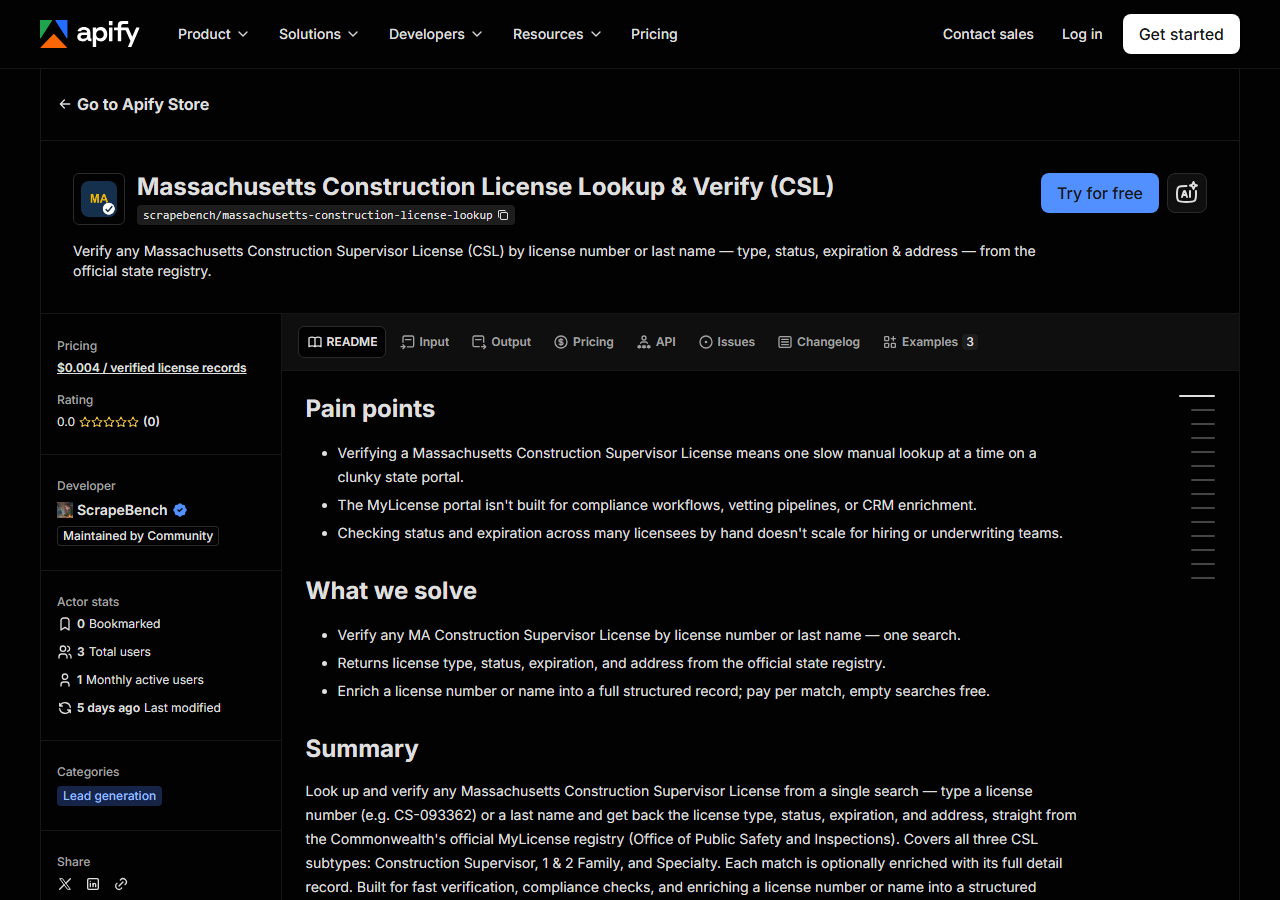
Step-by-step: the exact input, what each field does, and the rows that come back from MA OPSI (MyLicense).
The honest starting point: Massachusetts publishes this data for free. The Office of Public Safety and Inspections runs a public MyLicense verification portal, and if you have one Construction Supervisor to check before you hire him, go and check him there — it’s the same registry this actor reads, and it costs nothing. This page is for the job that isn’t one lookup. You’re onboarding a list of subs and each one needs a CSL number, type, status and expiration in a spreadsheet. You re-verify every active supervisor each quarter, because a license that read Active in January can read Expired by April. Or you have a last name and no license number, and you need every CSL that name is attached to. By hand that’s a form fill, a results grid, a click into each detail page, and a dozen fields copy-pasted per licensee — repeated for every name, and thrown away the moment the session ends. This actor does the same searching and returns structured rows instead.
What you’ll need
Nothing but an Apify account. The actor talks to MA OPSI (MyLicense) directly.
No API key, no CAPTCHA-solving service, no proxy subscription, no browser. The portal is public and plain HTTP — recon confirmed there’s no CAPTCHA anywhere in the search form or its submit — so the actor fetches it with a normal HTTP client, and the only bill is the actor’s per-result fee plus Apify compute. There’s no third-party cost hiding behind it.
Step 1 — Open the actor
Open Massachusetts Construction License Lookup & Verify (CSL) on the Apify Store and press Try for free. The actor’s own page on this site lists its live health and pricing.
Step 2 — Fill in the input
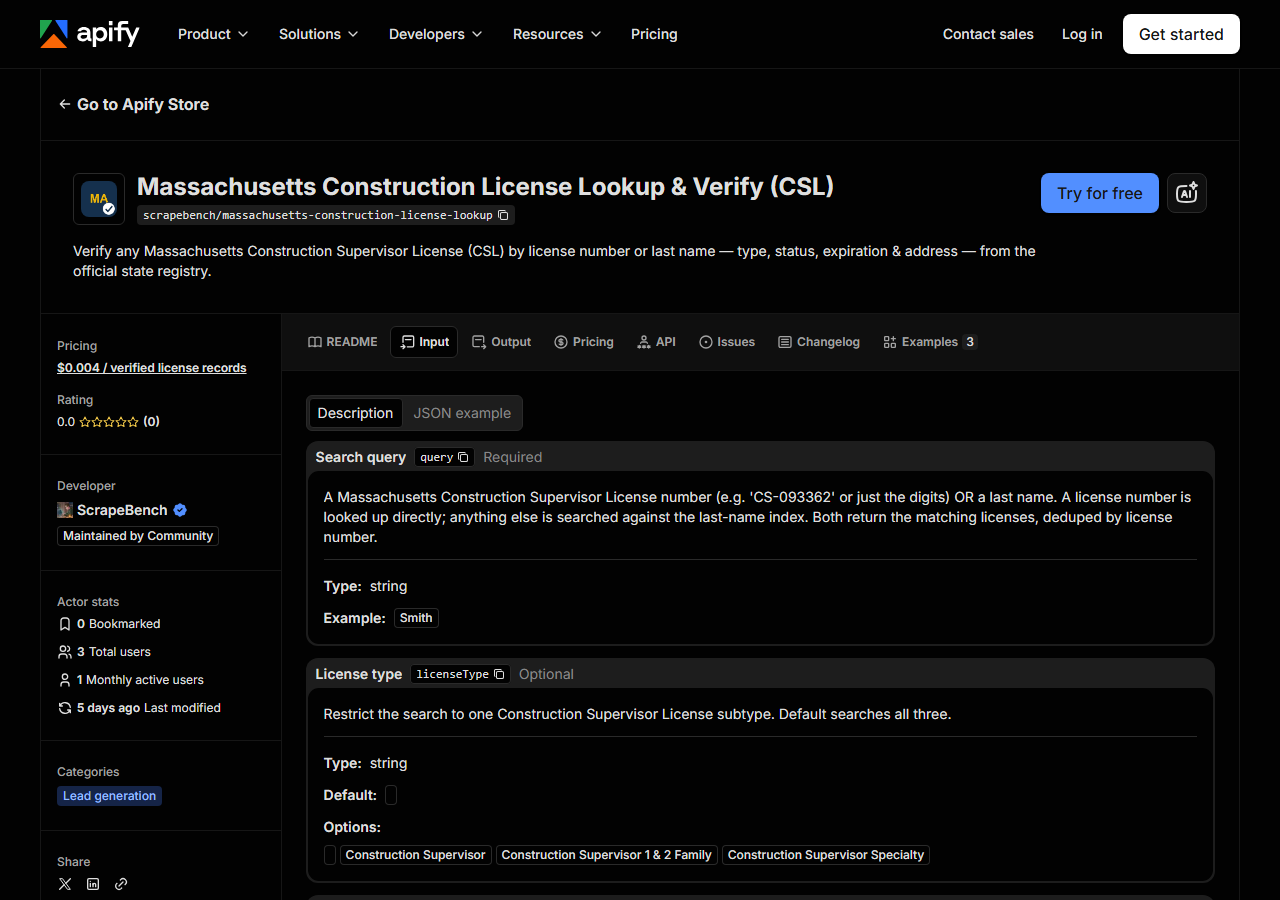
| Field | Type | Required | What it does |
|---|---|---|---|
query | string | yes | A Massachusetts Construction Supervisor License number (e.g. ‘CS-093362’ or just the digits) OR a last name. A license number is looked up directly; anything else is searched… |
licenseType | string | no | Restrict the search to one Construction Supervisor License subtype. Default searches all three. (default “) |
statusFilter | string | no | Exact license-status text to keep, e.g. ‘Active’, ‘Expired’, ‘Null and Void’, ‘Suspended’, ‘Revoked’. Default: no filter (all statuses). |
includeDetails | boolean | no | When on (default), each match is enriched with its full Details.aspx record — address, city, ZIP, and issue/expiration dates. Turn off for a faster, lighter result list (name,… (default True) |
maxResults | integer | no | Cap on the number of matches returned (and enriched) in a single run. The portal itself caps each individual search at ~40 rows per page — narrow the query (name, license type,… (default 50) |
query is the only required field, and it silently picks one of two searches for you. If what you
type looks like a CSL number — CS-093362, CS093362, or just the digits — the actor runs a
license-number search and you get that one license back. Anything else is treated as a last name
and goes into the portal’s last-name field. That’s the part first-timers get wrong: this is a
surname search, not a free-text company search. Smith works; Smith Construction LLC will not
find anything, because the registry is indexed on the individual supervisor’s name, not on a
business. The matched_by column in each row tells you which of the two searches produced it.
licenseType is the field worth thinking about second. Leave it empty (the default) and the actor
searches all three CSL subtypes in turn — Construction Supervisor, Construction Supervisor 1 & 2
Family, and Construction Supervisor Specialty — and unions the results, deduped by license number.
That’s the thorough setting and it’s three searches’ worth of work. Setting it to a single subtype
is how you keep a common surname under the portal’s own per-search page cap of roughly 40 rows;
statusFilter (an exact status string like Active) narrows the same way. includeDetails is on
by default and adds one extra fetch per match to pull in the address, city, ZIP and the issue and
expiration dates; turn it off and you get a faster, thinner list of name, license number, type and
status only. maxResults (default 50) bounds the whole thing.
A working input:
{
  "query": "Smith",
  "licenseType": "",
  "includeDetails": true,
  "maxResults": 40
}
Step 3 — Run it
Press Start. Rows are pushed to the dataset as they’re found, so the run log fills in as it works.
A healthy run is short. A license-number lookup returns a single row. A last-name search returns as
many CSL holders as the registry has under that surname, capped by maxResults — a distinctive name
might be two or three rows, a common one will run into the portal’s ~40-row page limit. The work
behind the run is one search per license subtype searched, plus one detail fetch per match when
includeDetails is on, so an all-subtypes search on a common surname with details on is the slowest
shape and a single-subtype number lookup is the fastest.
An empty run is almost never a broken actor. A license number that returns nothing is a number the
registry doesn’t hold — check the digits, and remember the CS- prefix is optional but the number
has to be a real CSL. A surname that returns nothing usually means you gave it something other than
a surname (a company, a first name, a full name with initials) or a statusFilter string that
doesn’t exactly match the registry’s own wording. Widen it: clear licenseType and statusFilter
first, and search the bare last name on its own.
Step 4 — Read the output
Each run returns a labelled table, not raw JSON:
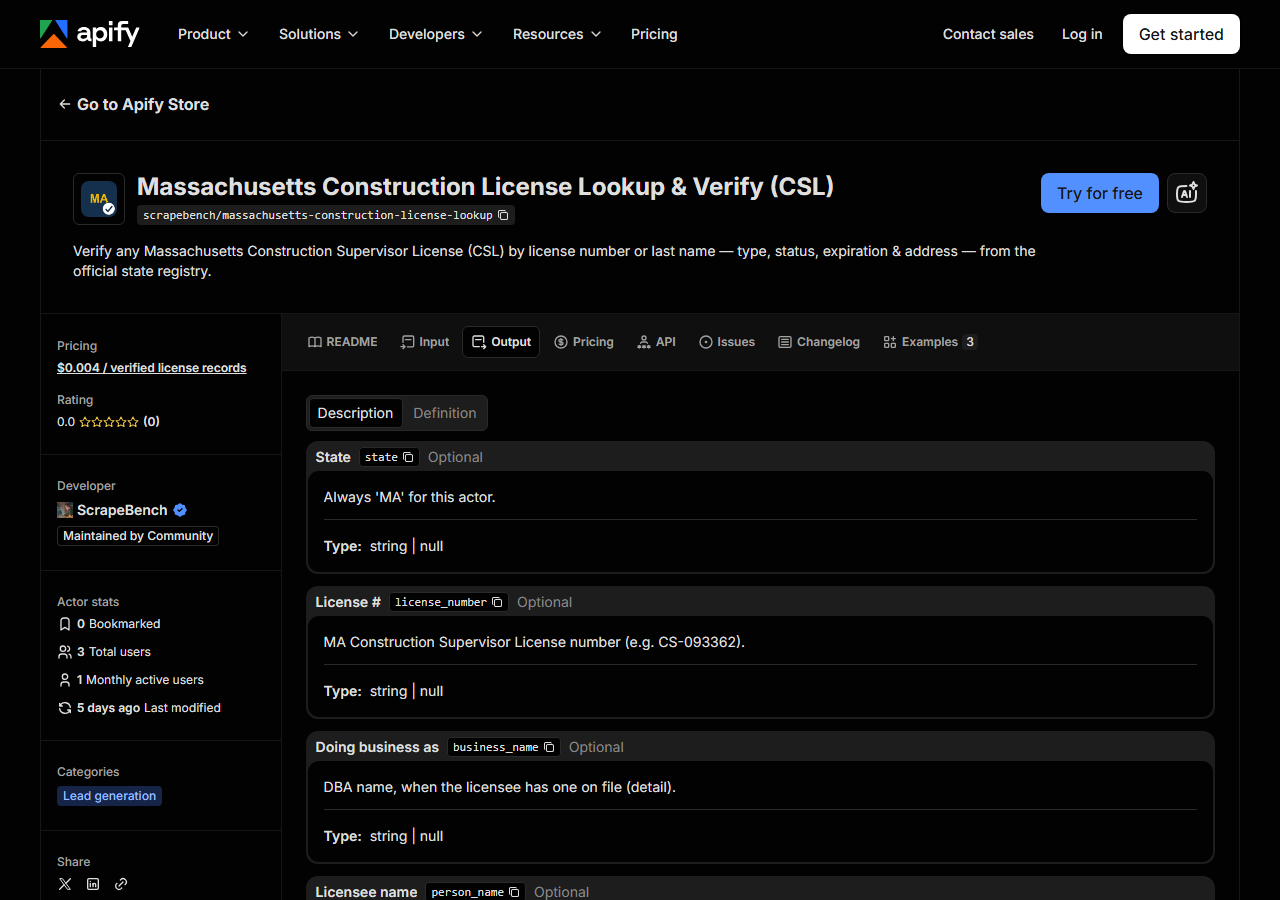
Every row looks like this — a real row from a real run:
{
  "state": "MA",
  "license_number": "CS-093362",
  "person_name": "CHARLES JOHNSON IV",
  "business_name": null,
  "license_type": "Construction Supervisor",
  "status": "Null and Void",
  "issue_date": "2/9/2010",
  "expiration_date": "2/9/2014",
  "city": "Salisbury",
  "address": "17 LENA MAES WAY",
  "zip_code": "01952",
  "matched_by": "license_number",
  "source_url": "https://madpl.mylicense.com/Verification/Details.aspx?result=e42cc6bc-9d25-4fa1-a73b-656980e54be9"
}| Field | Example value | Meaning |
|---|---|---|
state | MA | Always ‘MA’ for this actor |
license_number | CS-093362 | MA Construction Supervisor License number (e.g. CS-093362) |
person_name | CHARLES JOHNSON IV | Individual licensee full name |
business_name | — | Doing-business-as name, when on file (detail) |
license_type | Construction Supervisor | Construction Supervisor, 1 & 2 Family, or Specialty |
status | Null and Void | License status (e.g. Active, Expired, Null and Void, Suspended) |
issue_date | 2/9/2010 | Original licensure date (detail) |
expiration_date | 2/9/2014 | License expiration date (detail) |
Most people came for status and expiration_date, and both need reading with a little care.
status is the registry’s own wording, not a tidy enum: alongside Active and Expired you will
see values like Null and Void, and the sample row above is exactly that — a real CSL that lapsed
in 2014. If you’re going to branch on the field in code, match on the strings the registry actually
emits rather than assuming a two-state Active/Expired world, and treat anything you don’t recognise
as needing a human look. Dates come through as the portal prints them — 2/9/2010, unpadded
month/day/year — so parse them, don’t sort them as text.
The rest of the caveats are about what’s present. business_name, address, city, zip_code,
issue_date and expiration_date are detail fields: they only arrive when includeDetails is
on, and business_name is null for the many supervisors with no DBA on file. The record schema is
shared across the license-lookup suite, so a few columns (phone, county, bond, insurance) exist for
consistency but are always null here — this registry simply doesn’t publish them. And one thing
that’s genuinely peculiar to this portal: source_url points at a Details.aspx?result=<guid>
page, and that guid is bound to the search session that produced it. It’s there as provenance, but
don’t expect to paste it into a browser next week and land on the record. If you need a permanent
citation for an auditor, cite the license number and re-run the lookup.
Step 5 — Export it
Open the Dataset tab and export to CSV, JSON, or Excel — or pull the same rows from the API, which is what you want if this is going to run on a schedule.
What it costs
$0.004 per license record returned. A search that finds nothing costs nothing — you are never charged for an empty result. Verifying one supervisor by CSL number is a single record, so four tenths of a cent. Running a 150-name onboarding list through it is 150 records, about $0.60, plus whatever extra rows the surname searches turn up. Apify’s platform compute is billed separately, per your plan.
Say the comparison plainly: against the state’s free portal this is not cheaper, it’s zero-effort and schedulable. One lookup, once? Use the free portal.
Where the data comes from
This reads MA OPSI (MyLicense) directly. The target is MyLicense (ASP.NET WebForms) - __VIEWSTATE / __EVENTVALIDATION harvested from the search page and replayed; results paged by __doPostBack. Every night a canary runs this actor against that live source and diffs the result against a frozen fixture — what “verified” means.
MyLicense is an ASP.NET WebForms application, and that is the whole reason this is more annoying
than “fetch a URL”. There is no address you can request with a name in it. The search only works if
you first load the form, harvest its hidden __VIEWSTATE and __EVENTVALIDATION tokens, and POST
them back with your query — and those tokens change on every page load. Paging through the results
grid isn’t a link either; it’s a __doPostBack that replays the tokens again. The sharpest edge is
statefulness: the detail page for a match is addressed by a guid that is only valid inside the
session’s current result set, so the moment you page forward, the guids from the previous page go
dead. The actor therefore enriches each page of results before it moves on, which is why the detail
fetches are interleaved with the paging rather than batched at the end. None of this is an anti-bot
wall — there’s no CAPTCHA and nothing is trying to stop you — it’s just a portal built to be clicked
by a person, one search at a time.
One more boundary worth knowing: this is the Construction Supervisor License (CSL) only. Home Improvement Contractor (HIC) registration lives on a completely separate Massachusetts system and is not covered here.
Related actors
Verify a Massachusetts CSL by License Number checks a single CSL number before a sub goes on site.
If you don’t know which state a contractor is licensed in, or you want the same person checked in several states at once, reach for Multi-State Contractor & Trade License Lookup instead; come back here when you know the answer is Massachusetts and you want the full CSL detail record.
Last updated 2026-07-13